As a tech writer with over a decade of experience, I’ve had the privilege of breaking down complex concepts like machine learning, SSD controllers, and RAM speed in plain English. However, there was one area that left me feeling uneasy – the terminal. That stark black window with the flashing cursor seemed like a different language altogether, one that only developers and engineers could speak. I’d pretend to understand, but deep down, I was quietly panicking. One wrong command, and I might nuke my system. No undo button, no safety net. An unforgiving space, or so it seemed.
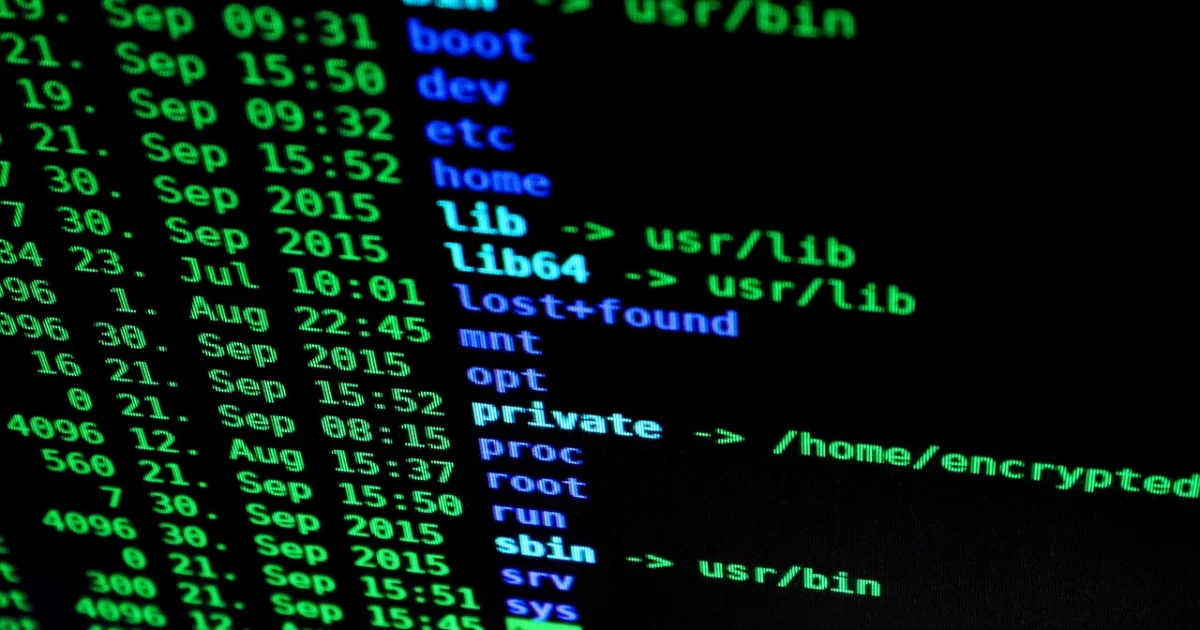
The Terminal: A Barrier to Entry for Non-Developers
The terminal has long been a source of intimidation for those who don’t consider themselves developers. The syntax, the commands, the very idea of typing code into a black box can be overwhelming. But what if I told you that there’s a way to break down this barrier, to make the terminal more accessible to non-developers? Enter Claude Code, a coding tool that works directly in your terminal, allowing you to use plain language to ask an AI to read files, edit code, run commands, and manage projects.
How Claude Code Works
So, how does Claude Code work its magic? In a nutshell, it’s a simple process. First, you install Claude Code on your machine by running a single command on Mac or Linux. On Windows, it’s a breeze via PowerShell. Once installed, you type ‘claude’ in your terminal, authenticate with your Anthropic account in the automatically open browser window, and you’re running. That’s it. No more complicated syntax, no more worrying about breaking your system.
Claude Code is more than just a chatbot, though. It’s an agent that interacts with your projects right on your machine, seeing your actual files and local environment. It’s like having a friendly programmer sitting next to you, guiding you through the process. When you’re working in Claude.ai’s web interface, which I truly do love, you’re copying and pasting snippets, explaining context, and uploading files one at a time. It’s useful, but it’s also a translation layer between your problem and the solution. Claude Code eliminates that gap, reading your codebase directly and understanding the relationships between files.
Managing WordPress Themes without Knowing PHP
As a writer managing websites and WordPress themes, I’ve found Claude Code to be an invaluable tool. I’m not writing Python or building applications; I’ll leave that to the developers and coders. But I do need to edit files occasionally, and Claude Code has become my safety net in technical moments. It lets me create consistent changes across multiple files, ensuring that my site looks and feels cohesive.
For example, I recently needed to make changes to a PHP template file, tweaking the navigation structure across multiple files that all shared the same design system. I knew what I wanted to do, but I just didn’t know how to work the file system, find all the relevant files, and make consistent changes without breaking something. That’s where Claude Code came in. I opened my terminal, found my project directory (barely), and typed ‘claude’. Then I simply described my problem as if messaging a developer friend: “I need to update the navigation in my WordPress child theme. The nav appears in multiple template files, and they all need to match. Can you look at the structure and tell me what I’m working with?”
Claude Code read the directory, found the relevant templates, highlighted inconsistencies, and proposed clear changes for my approval. Seeing it break down the steps in real-time made the whole project feel manageable rather than overwhelming. I said yes, and Claude Code made the changes, and just like that, the site was live. I gazed at the screen, surprised that everything worked so smoothly.
The Benefits of Claude Code for Non-Developers
So, what are the benefits of using Claude Code for non-developers? For one, it eliminates the barrier to entry for tools that typically require extensive ‘under-the-hood’ tinkering. With Claude Code, you can manage your site’s code by describing your intent rather than learning technical details. You focus on goals, and Claude Code handles the complexity. It’s not just a chatbot; it’s a tool that can automate your workflow, making it easier to manage your projects and websites.
But Claude Code isn’t just for writers and non-developers. It’s also a valuable tool for developers who want to streamline their workflow and focus on more complex tasks. By automating repetitive tasks and providing clear, actionable advice, Claude Code can help developers work more efficiently and effectively.
You may also enjoy reading: Google Unveils 3 Groundbreaking TPUs for the Agentic Era.
Claude Code vs. Claude.ai: Why the Terminal Version Changes Everything
So, why is the terminal version of Claude Code so much more powerful than the web interface? For one, it eliminates the need for copy-pasting snippets and explaining context. With Claude Code, you can work directly with your files and local environment, seeing the changes in real-time. It’s like having a friendly programmer sitting next to you, guiding you through the process.
But there’s another reason why the terminal version of Claude Code is so much more effective. It’s because it’s a more intimate, more personal experience. When you’re working in the terminal, you’re working directly with your machine, your files, and your projects. It’s a more hands-on, more tactile experience, and that’s what makes it so powerful.
Conclusion
As I reflect on my experience with Claude Code, I’m struck by how much it’s changed my relationship with the terminal. No longer do I feel intimidated by the syntax and the commands. Instead, I feel empowered, confident that I can manage my projects and websites with ease. Claude Code has broken down the barrier to entry for non-developers, making it possible for anyone to work with the terminal and automate their workflow.
So, if you’re a writer, a non-developer, or simply someone who wants to streamline their workflow, I highly recommend giving Claude Code a try. It’s a game-changer, and it will change the way you work with the terminal forever.
Getting Started with Claude Code
Getting started with Claude Code is easier than you think. First, you’ll need to install it on your machine by running a single command on Mac or Linux. On Windows, it’s a breeze via PowerShell. Once installed, you can start using Claude Code to automate your workflow and manage your projects. It’s a simple process, and it’s a great way to get started with the terminal.
Conclusion
As I conclude this article, I want to emphasize just how powerful Claude Code is. It’s a tool that can automate your workflow, streamline your projects, and make working with the terminal a breeze. Whether you’re a writer, a non-developer, or simply someone who wants to learn more about the terminal, Claude Code is an essential tool that you need to try. So, what are you waiting for? Get started with Claude Code today, and discover a whole new world of possibilities.