You just spent upwards of $1,000 on a flagship gaming monitor. The marketing promises are irresistible: third-generation QD-OLED or WOLED technology, instantaneous 0.03ms pixel response times, infinite contrast ratios with deep obsidian inky blacks, and silky-smooth 240Hz or 360Hz refresh rates. In cinematic games like Cyberpunk 2077 or high-dynamic-range 4K video playback, the visual presentation is nothing short of breathtaking. But on Monday morning, the moment you open your development environment, a complex spreadsheet, or a terminal window to start your workday, an infuriating defect punches you directly in the eyes: text looks strangely fuzzy, fine font strokes appear blurred, and high-contrast letterforms are surrounded by hideous lime-green and magenta color fringing.
This optical irritation is neither an imagined defect nor a faulty display cable. It is the inescapable physical byproduct of a fundamental architectural mismatch between modern OLED display manufacturing and twenty-five-year-old operating system software typography: non-standard subpixel layouts colliding with Microsoft Windows ClearType. While standard LCD monitors built over the past three decades universally conform to a standardized Vertical RGB Stripe layout, both Samsung Display (QD-OLED) and LG Display (WOLED) abandoned standard stripes to optimize brightness, organic emitter lifespan, and burn-in mitigation. Here is the comprehensive technical breakdown of how OLED subpixel geometries break font antialiasing, why Apple Mac users rarely complain, and how to calibrate or shop for an OLED monitor that won’t ruin your eight-hour productivity workday.
1. The 25-Year Foundation: How Microsoft ClearType Antialiasing Works
To understand why OLED monitors produce colored text fringing, one must first appreciate how operating systems render typography on computer screens. A digital font file (such as TrueType or OpenType) stores letterforms as mathematical Bézier vectors. When rendering a letter onto a pixel grid, the operating system’s typography engine must rasterize continuous curves into discrete pixel blocks.
On a low-density display, standard whole-pixel antialiasing (grayscale antialiasing) simply colors boundary pixels in intermediate shades of gray. While this smooths jagged edges (“staircasing”), it introduces a noticeable perceptual blur on small font sizes (such as 9pt to 12pt body text).
To solve this in 1998, Microsoft researchers developed ClearType Subpixel Font Rendering, introducing it in Windows XP. ClearType exploits a physical property of standard liquid crystal displays: each individual pixel is not a monolithic square, but is composed of three physically separate, vertical subpixel stripes: Red, Green, and Blue, arranged side-by-side:
[ Pixel N-1 ] [ Pixel N (R | G | B) ] [ Pixel N+1 ]
|———–| [Red] [Green] [Blue] |———–|
|———–| stripe stripe stripe |———–|
Because the three subpixels are horizontally offset, ClearType treats each color subpixel as an independent spatial coordinate. By modulating the brightness of individual subpixels, ClearType effectively triples the horizontal resolution of the display for typography.
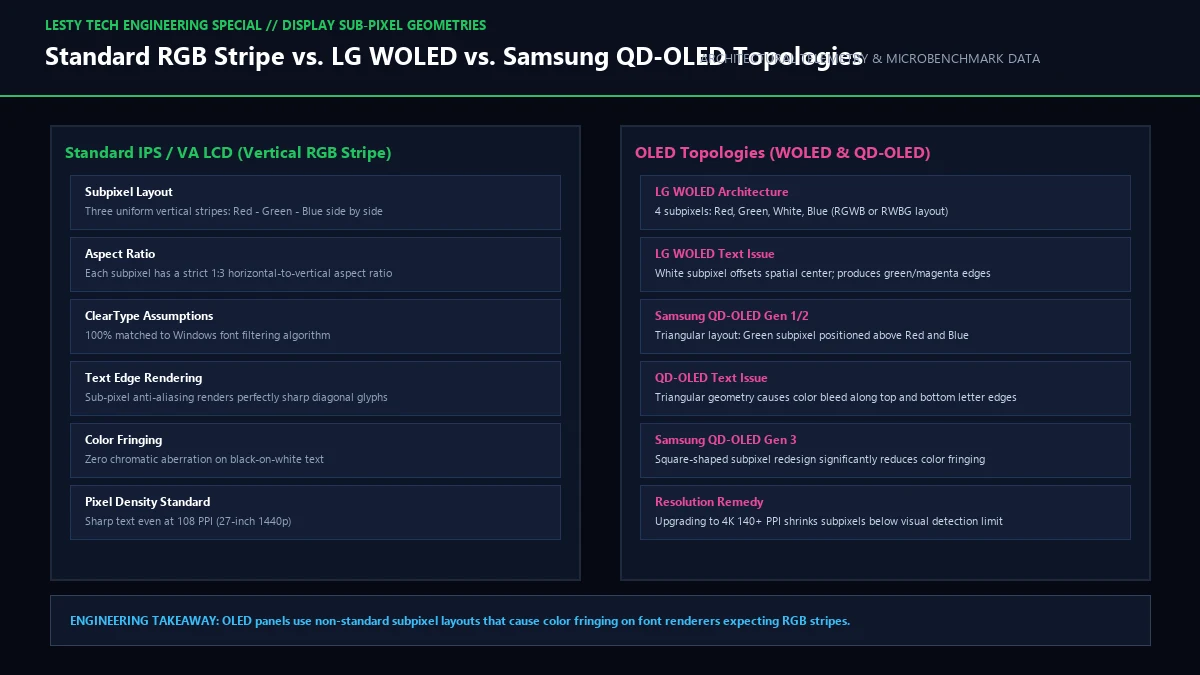
To prevent the human visual cortex from perceiving individual red and blue color spots, ClearType applies a specialized mathematical low-pass spatial filter across adjacent subpixels. This filter relies on a rigid, hardcoded mathematical axiom: the subpixels must be arranged as vertical, uniform, parallel stripes in exact left-to-right Red-Green-Blue order.
2. The Physical Culprit: Non-Standard OLED Subpixel Geometries
In organic light-emitting diode (OLED) manufacturing, pixels do not use a passive backlight; every single subpixel is an active, emissive organic chemical diode. Because organic blue and red emitters degrade at radically different rates under thermal and electrical stress (the underlying cause of permanent image retention, or burn-in), panel manufacturers cannot easily build uniform vertical RGB stripes.
Instead, the two dominant OLED display manufacturers engineered completely novel subpixel topologies:
A. Samsung Display QD-OLED: The Triangular Subpixel Matrix
Samsung’s Quantum Dot OLED panels use blue OLED material as a universal backlight, passing the light through printed quantum dot nanoparticles to convert blue light into pure green and red. To maximize quantum dot deposition yields and aperture ratios, Samsung arranged the subpixels in a triangular delta pattern:
- The Green subpixel sits alone at the top apex of the pixel.
- The Red and Blue subpixels sit side-by-side along the bottom base of the pixel.
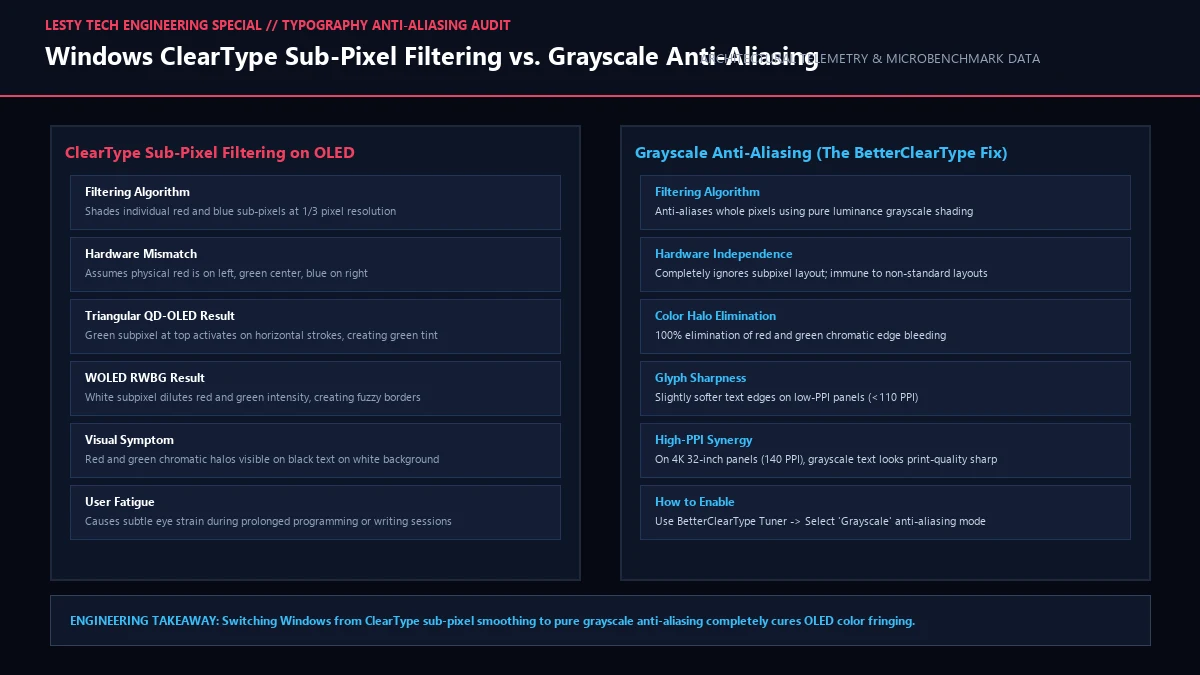
When Microsoft ClearType attempts to render a vertical black letter on a white background, it assumes subpixels are adjacent vertical stripes. On a QD-OLED panel, the solitary Green subpixel at the top is exposed along horizontal character boundaries. The human eye immediately perceives a distinct lime-green fringe along the top edge of letters and a complementary magenta (red + blue) fringe along the bottom edge.
In Gen 2 and Gen 3 QD-OLED panels (found in newer 2024–2026 32-inch 4K and 27-inch 360Hz monitors), Samsung squared the subpixel apertures, reducing spacing gaps and substantially mitigating edge bleeding. However, the fundamental triangular geometry remains physically intact.
B. LG Display WOLED: The Four-Subpixel Dilemma (WRGB / RGWB)
LG Display takes a different engineering route: its panels use white OLED emitters paired with color filters. Because white organic light-emitting stacks lose efficiency when filtered, LG inserts an un-filtered pure White (W) subpixel into every pixel to dramatically boost peak luminance for HDR highlights.
This introduces a four-subpixel layout (typically Red-Green-White-Blue or White-Blue-Green-Red). ClearType’s rasterizer is completely blind to four-channel pixels; it has zero concept of a fourth “White” subpixel.
When Windows illuminates what it believes is a pure Red or Blue subpixel to antialias a font curve, the physical display controller may illuminate the White subpixel or misalign the spatial energy distribution. The result is asymmetric font weighting, where vertical stems look disproportionately thick or thin, accompanied by subtle cyan and yellow chromatic fringes along vertical edges.
3. The Operating System Software Divide: Windows ClearType vs. macOS vs. Linux
The text fringing dilemma is heavily exacerbated by operating system software architecture. If you connect a MacBook Pro to a QD-OLED monitor, you will notice that text fringing is virtually non-existent compared to a Windows 11 PC.
Why does macOS look pristine while Windows struggles?
- Windows ClearType (The Legacy Anchor): Windows ClearType remains fundamentally anchored to DirectWrite and GDI architectures dating back to the late 1990s. The ClearType Tuner utility only offers two underlying configurations: Standard RGB Stripe or BGR Stripe. Windows provides zero native API support for triangular delta, pentile, or WRGB layouts. If a panel does not have vertical stripes, ClearType’s mathematical subpixel calculations will produce chromatic errors.
- Apple macOS (The Brute-Force High-DPI Approach): In macOS 10.14 Mojave (2018), Apple made the controversial decision to completely remove subpixel font antialiasing from macOS. Apple’s CoreText rendering engine exclusively uses pure Grayscale Antialiasing. Because grayscale antialiasing treats the pixel as a unified monochrome luminance value without manipulating individual color subpixels, it produces zero chromatic color fringing regardless of whether your monitor uses RGB, BGR, triangular QD-OLED, or WRGB! However, grayscale antialiasing requires high pixel densities (≥110–140 PPI) to look sharp.
- Linux FreeType: Linux distributions utilizing the FreeType font rendering engine allow granular subpixel geometry configuration. Advanced desktop environments allow users to configure subpixel hinting, light hinting, or switch entirely to modern SLA (Subpixel LCD Antialiasing) filters tailored for unusual matrices.
4. The Density Antidote: Why 4K 32-Inch (140 PPI) Changes the Game
While subpixel geometry creates the color fringing artifact, your eye’s ability to perceive it is strictly governed by Pixel Density (Pixels Per Inch, or PPI) and viewing distance.
Human visual acuity is measured in cycles per degree of visual angle. At a standard desktop viewing distance of 24 to 28 inches (60–70 cm), a person with normal 20/20 vision can resolve details down to approximately 1 arcminute (1/60th of a degree).
Consider the pixel density differences across popular OLED monitor form factors:
| Monitor Class | Panel Architecture | Pixel Density (PPI) | ClearType Fringing Severity | Productivity Suitability |
|---|---|---|---|---|
| 27-inch 1440p (QHD) | Gen 1 QD-OLED / WOLED | 108.8 PPI | Severe / Highly Visible | Poor for 8-hr coding or text work |
| 34-inch 1440p Ultrawide | Gen 1 QD-OLED | 109.7 PPI | Severe / Visible Fringing | Primarily gaming & media consumption |
| 27-inch 1440p (QHD) | Gen 3 QD-OLED / Latest WOLED | 110.8 PPI | Moderate / Tolerable | Acceptable with ClearType tuning |
| 32-inch 4K (UHD) | Gen 3 QD-OLED / 4K WOLED | 139.9 PPI | Minimal / Barely Perceptible | Excellent for full-time productivity |
| 27-inch 4K (UHD) Fast-IPS | Standard Vertical RGB Stripe | 163.2 PPI | Zero Fringing / Laser Sharp | Reference standard for developers |
On a 27-inch 1440p monitor (109 PPI), individual pixels measure approximately 233 microns across. At this coarse pitch, the colored boundary halos created by mismatched subpixels are easily resolved by the naked eye.
In contrast, on a 32-inch 4K OLED monitor (140 PPI), individual pixels shrink to 181 microns, and individual subpixel apertures are microscopic. At normal viewing distances, the physical green and magenta fringes fall beneath the angular resolution limit of human photoreceptors. Sheer pixel density acts as the ultimate physical filter, delivering crisp, razor-sharp text that rivals premium LCDs.
5. Practical Software Fixes and Calibration Guide for Windows Users
If you already own an OLED monitor and suffer from eye fatigue due to text fringing, several practical software adjustments can dramatically improve your reading experience:
- Run the ClearType Text Tuner: Press
Windows Key + S, type Adjust ClearType text, and proceed through the 5-step wizard. On monitors with BGR or non-standard subpixels, selecting sample boxes with slightly heavier, bolder stroke weight can help mask chromatic fringing. In some cases, disabling ClearType entirely (reverting to Windows grayscale smoothing) eliminates color fringing completely, though text will appear slightly thinner. - Deploy BetterClearTypeTuner: Download the open-source utility BetterClearTypeTuner. This tool exposes the hidden DirectWrite registry knobs that Microsoft’s built-in wizard conceals. Set the font antialiasing mode to Grayscale rather than Subpixel RGB. For 1440p and 4K displays, pure grayscale rendering eliminates all green and magenta halos across modern browsers and desktop applications.
- Enable MacType for Advanced Typography: For power users and programmers who stare at code all day, the open-source utility MacType replaces Windows’ entire DirectWrite rendering engine with FreeType-based typography. MacType renders fonts using smooth, high-quality grayscale rasterization, delivering macOS-like typography that looks pristine on QD-OLED and WOLED panels.
- Increase Windows UI Scaling: If operating at 1440p or 4K, avoid running at 100% native scaling. Increasing Windows display scaling to 125% or 150% increases the pixel allocation per character stem, effectively pushing subpixel artifacts past your visual acuity threshold.
6. Buying Advice: Which Monitor Should You Buy in 2026?
When choosing between modern display technologies, your daily workflow split should dictate your purchasing decision:
- The 8-Hour Software Engineer / Writer: If you spend 70% or more of your day reading code, editing documentation, or reviewing spreadsheets, do not buy a 27-inch 1440p Gen 1/Gen 2 OLED. Instead, choose either a premium 32-inch 4K 140 PPI OLED (such as the ASUS PG32UCDM or Dell Alienware AW3225QF) where density eliminates fringing, or stick with a high-refresh 4K Fast-IPS LCD panel with Mini-LED backlighting.
- The Hybrid Gamer / Content Creator: If your workday consists of mixed photo editing, video editing, and gaming, a 32-inch 4K QD-OLED Gen 3 panel represents the ultimate sweet spot. You get breathtaking HDR contrast and ultra-fast motion clarity for gaming, paired with pixel density sharp enough to render text flawlessly during office hours.
- The Competitive Esports Player: If maximum motion clarity and ultra-high refresh rates (360Hz to 480Hz) are your primary priority, a 27-inch 1440p OLED remains an extraordinary gaming weapon. Just be prepared to enable grayscale antialiasing or utilize 125% display scaling when reading text.
OLED Subpixel Geometry & Font Rasterization Technical Guide
Engineering Analysis of ClearType Mismatches, QD-OLED Triangular Matrices, and Text Fringing (Complete architectural audit with telemetry tables and schematic breakdowns).
OLED_Subpixel_Architecture_and_ClearType_Text_Fringing_Guide.pdfFormat: PDF / KaTeX Telemetry
Frequently Asked Questions (FAQ)
1. Will Microsoft update Windows 11 ClearType to natively support QD-OLED and WOLED panels?
It is highly unlikely. ClearType’s subpixel filtering logic is deeply embedded across legacy Win32, GDI, GDI+, and DirectWrite rendering pipelines. Rewriting these systems to support dynamic subpixel shader profiles for dozens of proprietary panel matrices would risk breaking millions of legacy enterprise Windows applications. Microsoft’s long-term architectural strategy is to wait for display densities to naturally surpass 150+ PPI, where subpixel antialiasing becomes mathematically redundant and grayscale antialiasing is sufficient.
2. Does using Dark Mode in Windows reduce text fringing on OLED monitors?
Yes, significantly. Chromatic text fringing is most severe when reading black text on a bright white background, because all color subpixels in the surrounding field are fully illuminated at maximum intensity, magnifying edge dispersion. In Dark Mode (light gray or white text on a deep black background), the surrounding OLED pixels are completely turned off (0 nits), which heavily restricts chromatic bleeding and makes text appear markedly sharper to the human eye.
3. Can text fringing cause permanent burn-in on an OLED monitor?
No, text fringing itself does not cause burn-in; it is purely an optical rasterization artifact. However, the static user interface elements associated with productivity work (such as window title bars, taskbars, IDE sidebars, and static text documents displayed for 8 hours a day) DO pose a legitimate burn-in risk for OLED organic emitters. If you use an OLED monitor for daily office work, ensure you enable pixel shift, set an aggressive display sleep timeout, and auto-hide the Windows taskbar.