You plug in your new streaming device, but the TV screen stays stubbornly dark. Your soundbar refuses to play audio from the console. Or maybe the picture flickers every few minutes, ruining the climax of your favorite film.
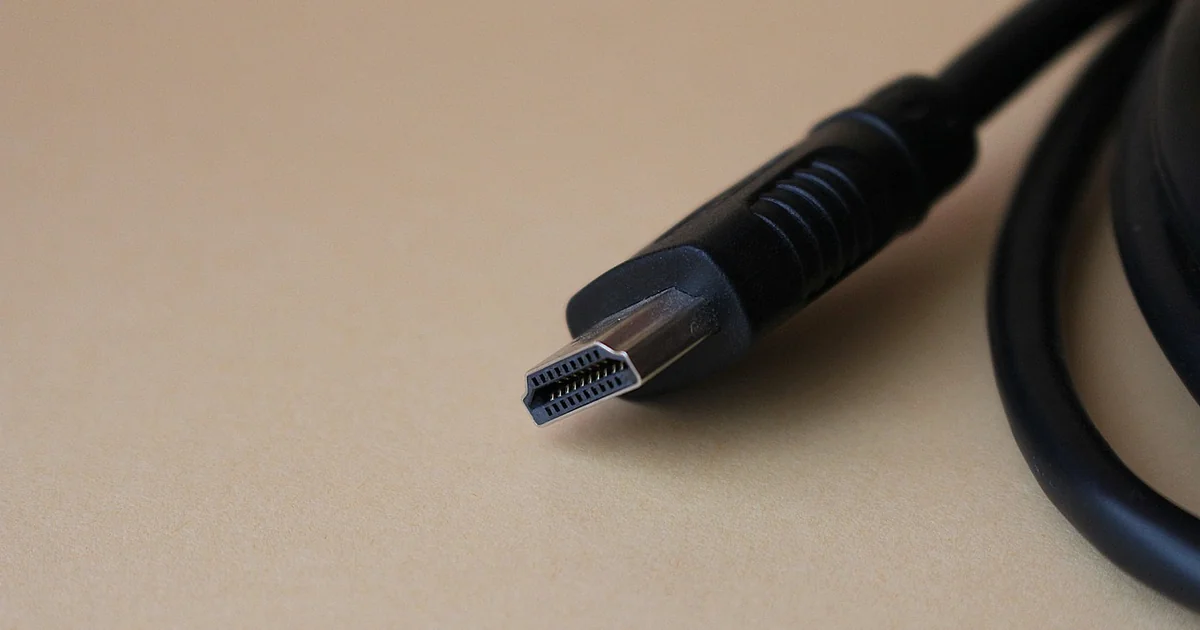
The Five Most Frequent HDMI Issues and Their Solutions
Problem 1: No Signal or Black Screen
You turn on everything, but the TV reports “No Signal” or simply stays black. This is the most common HDMI complaint. The cause is usually a loose connection, the wrong input selected, or a cable that is too long for a passive connection.
Most HDMI cables are passive, meaning they contain no active electronics to boost the signal. Passive cables work reliably up to about 10 feet (3 meters). Beyond that, the risk of dropouts increases sharply. If you use a passive cable longer than 20 feet (6 meters) without additional equipment, you are almost certain to encounter signal loss.
How to fix this HDMI problem:
- Check that the cable is fully inserted at both ends. A half-plugged connector is a frequent culprit.
- On your TV remote, cycle through the input sources (HDMI 1, HDMI 2, etc.) until you see the correct feed.
- If your cable run exceeds 10 feet, switch to an active cable. Active cables contain built-in signal boosters and can reliably carry data up to 100 feet (30 meters) for copper types, or over 300 feet (91 meters) for optical ones. They cost more but are the most straightforward solution for long distances.
- Test with a shorter cable to isolate whether length is the issue.
Problem 2: Intermittent Flickering or Dropouts
The picture appears but flickers on and off, or the screen goes black for a second every few minutes. This is often a sign of signal degradation. It can happen even with shorter cables if the cable is damaged, poorly shielded, or running near strong electromagnetic interference.
HDMI signals are sensitive. Running a cable parallel to power cords, near a microwave, or alongside fluorescent lighting can introduce noise. Additionally, a bent or crushed cable can break internal wires without visible damage to the outer jacket.
How to fix this HDMI problem:
- Inspect the cable for kinks, sharp bends, or physical damage. Replace any cable that looks suspect.
- Move the cable away from power cords and appliances. A separation of at least a few inches helps.
- If you need a long run, use an active cable. Passive cables longer than 10 feet are prone to dropouts, especially with high-bandwidth signals like 4K at 60 frames per second.
- Try a different HDMI port on your TV or source device. Some ports may have looser connections or different specifications.
Problem 3: No Audio or Audio That Is Out of Sync
You have a perfect picture, but the sound is missing, delayed, or only coming from the TV speakers instead of your soundbar. This often relates to HDMI Audio Return Channel (ARC) settings, EDID handshakes, or bandwidth limitations.
HDMI 2.0, released in September 2013 by the HDMI Forum, supports up to four simultaneous audio streams and up to 32 audio channels in total. However, not all devices implement ARC correctly. Older cables may also lack the bandwidth for high-bitrate audio formats like Dolby TrueHD or DTS-HD Master Audio.
How to fix this HDMI problem:
- Go into your TV’s audio settings and enable ARC or eARC if available. Also enable CEC (Consumer Electronics Control) on both the TV and the soundbar.
- Use a high-speed HDMI cable rated for 18 Gbps (the maximum bandwidth of HDMI 2.0) to ensure enough headroom for audio and video simultaneously.
- If audio is out of sync, check your TV or receiver for a lip-sync adjustment setting. Some devices allow you to add a delay in milliseconds.
- Update the firmware on your TV, soundbar, or AV receiver. Manufacturers often fix audio handshake bugs with updates.
Problem 4: Resolution or Refresh Rate Not Reaching Expected Levels
Your TV supports 4K at 60 frames per second, but the image appears at 1080p or 30 fps. This is almost always a cable bandwidth issue or an HDMI version mismatch. HDMI 2.0 delivers a maximum bandwidth of 18 Gbps, which is required for 4K 60fps with HDR. Older HDMI 1.4 cables cap at 10.2 Gbps, limiting 4K to only 30 fps.
Many people don’t realize that not all cables labeled “High Speed” are created equal. Cheap cables may fail to meet the specification at longer distances. Additionally, some devices have HDMI ports that are limited to older standards—for example, an older laptop might only output HDMI 1.4 even if the TV is 2.0.
You may also enjoy reading: 7 Buzzworthy Films for World Bee Day (Oscar-Robbed Included).
How to fix this HDMI problem:
- Replace your cable with a certified “High Speed” or “Premium High Speed” HDMI cable that explicitly supports 18 Gbps. Look for the official HDMI Licensing Administrator logo.
- Check the specifications of both your source device and display. If either only supports HDMI 1.4, you will be limited to 4K at 30 fps. Consider upgrading the older component.
- In your source device’s settings, manually select the highest resolution and refresh rate. Some devices default to a lower output to avoid compatibility issues.
- If you are using an active cable, ensure it is rated for the bandwidth you need. Some active cables are designed for 1080p only.
Problem 5: Handshake Issues (CEC and EDID Conflicts)
Devices fail to recognize each other. The TV might not detect the source, or the source might output a resolution the TV cannot display. This is called a handshake failure. It often occurs when using multiple devices through an HDMI switch, or when mixing brands that implement CEC differently.
EDID (Extended Display Identification Data) is the information a display sends to the source about its capabilities. If the EDID is corrupted or the cable is too long, the source may fall back to a very low resolution or no signal at all. CEC (Consumer Electronics Control) can cause devices to turn on or off unexpectedly, creating confusion.
How to fix this HDMI problem:
- Perform a full power cycle: unplug all devices (TV, source, soundbar) from power for at least 60 seconds, then plug them back in. This resets the handshake.
- Disable CEC on devices that don’t need it. For example, if your streaming stick keeps turning off your TV, turn off CEC on the stick.
- If you use an HDMI switch or splitter, try connecting devices directly to the TV to see if the switch is causing the conflict. Some switches do not properly pass EDID data.
- Update firmware on all devices. Many handshake issues are resolved through software updates.
- As a last resort, use a simple HDMI adapter that strips EDID or forces a specific resolution. These are inexpensive and can stabilize stubborn connections.
When to Consider an HDMI 2.0 Upgrade
HDMI 2.0 was a major leap forward when the HDMI Forum released it in September 2013. It doubled the bandwidth from 10.2 Gbps to 18 Gbps, enabling 4K at 60 frames per second with HDR support (via HDMI 2.0a which added static HDR metadata). It also supports up to four simultaneous audio streams, making multi-room audio setups possible. All HDMI 2.0 devices use the same physical connectors as earlier versions, so upgrading is usually just a matter of buying new cables and devices that meet the standard.
If you are trying to run 4K HDR content and your current setup struggles, check whether your cables and devices are actually HDMI 2.0 compliant. Many older devices labeled “HDMI 1.4” cannot handle the bandwidth. Upgrading to HDMI 2.0 equipment will resolve most resolution and refresh rate problems.
By addressing these five common issues — no signal, flickering, audio trouble, resolution limits, and handshake conflicts — you can restore your home entertainment setup to smooth, reliable operation. Remember that cable length and quality are often the hidden culprits. A simple switch to an active cable or a certified high-speed cable can fix multiple problems at once. Keep these hdmi problems fix strategies handy, and you will spend less time troubleshooting and more time enjoying your content.