For years, Android users have relied on QuickShare to send files between nearby devices, much like Apple’s AirDrop. But a notable limitation has always existed: sharing with iPhones required workarounds or third‑party apps. That is changing. Google has announced that QuickShare’s QR code sharing method will now work with iPhones, even when the Android phone does not officially support AirDrop. This update bridges a long‑standing gap and offers a simple, visual way to transfer files across platforms. Below, we unpack everything you need to know about this feature, how to use it, and what it means for everyday sharing.
What Is QuickShare QR Code Sharing?
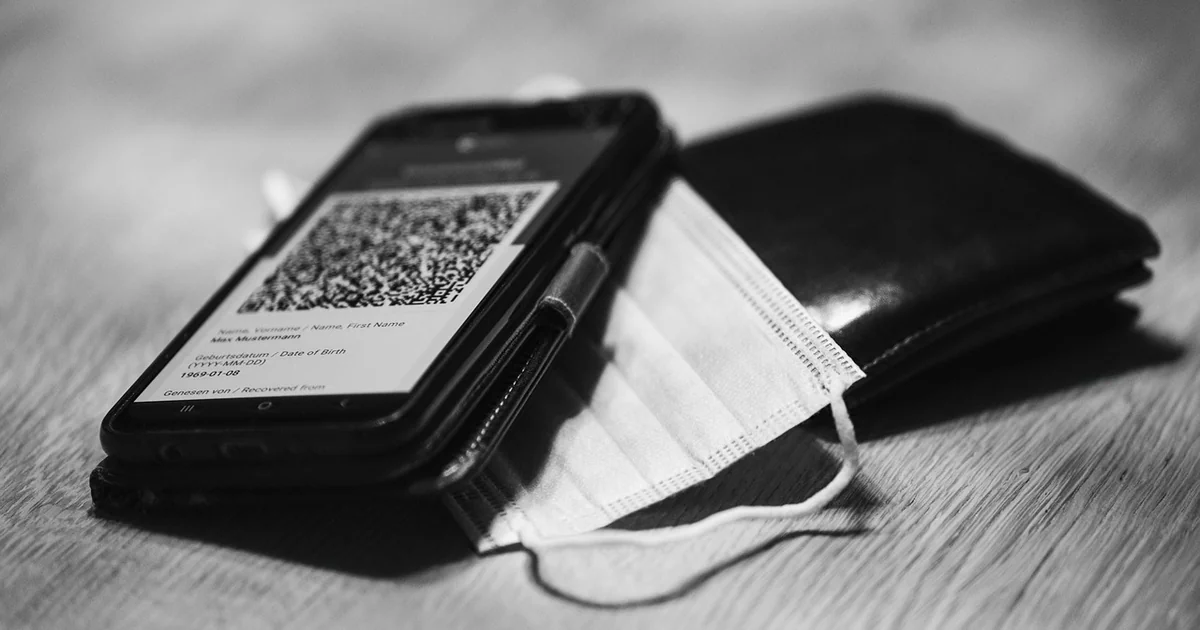
QuickShare, previously known as Nearby Share, is Android’s built‑in file‑sharing system. It offers two primary methods for sending files: direct Bluetooth pairing with a nearby device, and QR code generation. The QR code method has been available for some time, but its utility was largely limited to Android‑to‑Android transfers. With Google’s latest update, the QR code can now be scanned by an iPhone camera, which initiates the file transfer. This makes quickshare qr iphone sharing a reality for millions of users who operate in mixed‑device environments.
The key difference from the standard QuickShare flow is that the QR code approach does not require the receiving device to have any special app or to be discoverable via Bluetooth. Instead, the iPhone uses its native camera app to read the code, then follows a link to receive the file. It is a straightforward, low‑friction solution that bypasses many of the compatibility headaches that have plagued cross‑platform transfers for years.
How the QR Code Sharing Process Works
Understanding the mechanics helps you appreciate why this feature is so practical. Here is a step‑by‑step breakdown for using quickshare qr iphone sharing.
Step 1: Find and Share the File
Locate any file on your Android phone—a photo, a video, a document, or an app package—and tap the Share button. A menu of sharing options will appear. Look for the blue QuickShare icon and tap it.
Step 2: Choose QR Code Mode
After tapping QuickShare, you will see several options. Select “Use QR code.” At this point, ensure Bluetooth is switched on. While the QR code is a visual element, the underlying transfer still relies on a Bluetooth handshake to establish the connection. Without Bluetooth enabled, the QR code option may not appear at all.
Step 3: Display the QR Code
A QR code will appear on your Android screen. This code contains a temporary link that the iPhone can access. No complicated pairing menus exist—just a simple, scannable image. The code is designed to be short‑lived, adding a layer of security.
Step 4: Scan with an iPhone
Hand the iPhone user your Android phone (or hold it steady) and ask them to open the Camera app. The iPhone automatically recognizes QR codes. Once it scans, a notification banner appears at the top or bottom of the screen. Tap that banner to open the link. The transfer will begin.
Step 5: Wait for Completion
The file travels from your Android to the iPhone via a direct local connection. After the transfer finishes, the iPhone user can open the file immediately or save it. You can then close the QR code screen on your Android.
The entire process is faster than Bluetooth pairing and far simpler than emailing large files or using a cloud service. It is especially handy for one‑off transfers where you do not want to install extra apps.
Why Bluetooth Must Be On for QR Code Sharing
Some readers wonder why Bluetooth is required when the primary interface is a QR code. The answer lies in how QuickShare establishes the data channel. The QR code acts as a token that tells the iPhone where to connect, but the actual file transmission uses a combination of Bluetooth and Wi‑Fi Direct (or Wi‑Fi P2P). Bluetooth is used for the initial handshake and to coordinate the link. Without it, the devices cannot negotiate the secure connection. Keeping Bluetooth enabled is a minor friction point, but once you know the reason, it makes sense.
For users who habitually turn off Bluetooth to save battery, this requirement can be annoying. However, the QR code method only requires Bluetooth briefly—once the transfer starts, the heavy lifting is done over a faster radio. You can turn Bluetooth off again after the transfer completes.
Limitations and Known Issues
While the quickshare qr iphone update is welcome, it is not yet universally available. Google is rolling out the change gradually. If you try to scan a QR code with an iPhone and see an error message, your device may not have received the update yet. Google has stated that the full rollout should complete by the end of the month (as of the time of this writing). Patience is key—check for system updates on your Android phone.
Another limitation: the QR code method only works for individual file transfers. You cannot batch‑share multiple files in one go as you can with direct QuickShare. For large albums or folders, you may still need to use the direct Bluetooth method or a cloud service. Also, the feature is one‑way—Android to iPhone. iPhone users cannot initiate a transfer to Android via QR code; they must send files through other means.
Comparing QR Code Sharing to Other Cross‑Platform Methods
Before this update, sending files from Android to iPhone often meant using email, messaging apps (WhatsApp, Telegram), cloud storage (Google Drive, Dropbox), or third‑party file‑transfer apps like Send Anywhere or SHAREit. Each method has downsides: emails have file‑size limits, messaging apps compress images, and third‑party apps introduce privacy concerns or require both parties to install the same tool. QR code sharing with QuickShare eliminates the need for any extra software and preserves file quality.
Apple’s AirDrop remains exclusive to Apple devices. Google’s update does not add AirDrop support to Android—instead, it provides a separate, QR‑based entry point that iPhones can use. This is not as seamless as AirDrop, but it is the closest Android has come to a universal, first‑party solution.
You may also enjoy reading: 7 Things to Remember Before The Mandalorian & Grogu.
Real‑World Scenarios Where This Feature Shines
Scenario 1: The Mixed‑Device Family
Imagine a family where one parent uses a Samsung Galaxy, the other an iPhone, and the kids use a mix of devices. Sharing vacation photos used to involve texting each image individually or uploading to a shared album. Now, the Android user can generate a single QR code, let each family member scan it, and the photo lands on every iPhone without any additional steps. It saves time and frustration.
Scenario 2: The Small Business Owner
A small business owner works with a team that uses both Android and iOS phones. They frequently need to share project files, contracts, or product images on the go. Instead of juggling multiple apps or emailing large attachments, the owner can pull up a file on their Android, generate a QR code, and have team members scan it with their iPhones. The transfer happens quickly, and there is no need for everyone to be on the same platform.
Scenario 3: Travelers and Photographers
Travelers often swap photos with fellow tourists using different phones. When an Android user wants to share a stunning sunset shot with an iPhone‑wielding new friend, the QR code method is instant. No app to install, no Wi‑Fi network to join. It works in low‑connectivity areas because it uses local radios rather than the internet.
What File Types Can Be Shared?
QuickShare QR code sharing supports a wide range of file types, including images (JPEG, PNG), videos (MP4), documents (PDF, Word), audio files, and APKs (Android app packages). There is no artificial file‑size limit imposed by the feature itself, though very large files may take longer and could be interrupted if one device moves out of range. In practice, most everyday files up to a few hundred megabytes transfer reliably.
Troubleshooting Common Issues
QR Code Scan Fails or Shows an Error
If the iPhone camera scans the QR code but nothing happens, or an error appears like “Could not connect,” first confirm that Bluetooth is enabled on both devices. Next, ensure your Android has the latest system update. If the error persists, try restarting both phones. The feature is still being rolled out, so some devices may not be ready. Wait a few days and try again.
Bluetooth Must Be On – But What If It’s Off?
If you forget to turn on Bluetooth, the QR code option will not even appear in QuickShare. Go to your phone’s quick settings and toggle Bluetooth on. Once the transfer is done, you can turn it back off if you prefer. There is no known workaround that bypasses this requirement.
Transfer Stalls or Fails Midway
Large files or poor hardware performance can cause transfers to stall. Move the phones closer together, within a few feet. Avoid placing them near large metal objects or other radio interference. If the transfer fails, cancel it and try again from scratch.
Privacy and Security Considerations
Because the QR code contains a temporary link, it is automatically invalid after the transfer completes or after a short timeout. This prevents someone from scanning a code later and accessing your file. The entire transfer happens locally—no data is uploaded to Google’s servers. This is more private than email or cloud uploads. Also, the iPhone user cannot see your Android device’s name or any other personal information unless you choose to share it. The QR code only exposes the file you are sharing, nothing else.
Future Outlook: What’s Next for QuickShare?
Google has steadily improved QuickShare since its rebranding from Nearby Share. The addition of iPhone‑compatible QR codes is a significant step, but analysts expect further enhancements. One possibility is enabling two‑way QR code sharing—allowing iPhones to generate codes for Android phones. Another is integrating QuickShare with Chromebooks and Windows PCs via Google’s “Phone Link” feature. For now, the quickshare qr iphone update is a practical, long‑overdue improvement that makes cross‑platform file sharing less of a headache.
How to Check If Your Device Has the Update
To verify whether your Android phone supports QR code sharing with iPhones, try the steps above with an iPhone. If the iPhone recognizes the QR code and starts a transfer, you are good. If you see an error, check for system updates under Settings > System > System Update. Also ensure that Google Play Services is up to date. The rollout is server‑side, so some devices may receive it later than others—even within the same phone model.
For the best experience, keep both devices on the latest available software. Google has not specified a minimum Android version, but QuickShare is available on Android 6.0 and above, so most modern devices should work.