The Hidden Power of the Phone App
You bought a smartwatch. For the first few days, you tapped the screen, checked your rings, and felt motivated. Then the novelty faded. Within a week, you stopped glancing at the watch face. The real magic of any fitness wearable doesn’t live on your wrist. It lives on your phone.
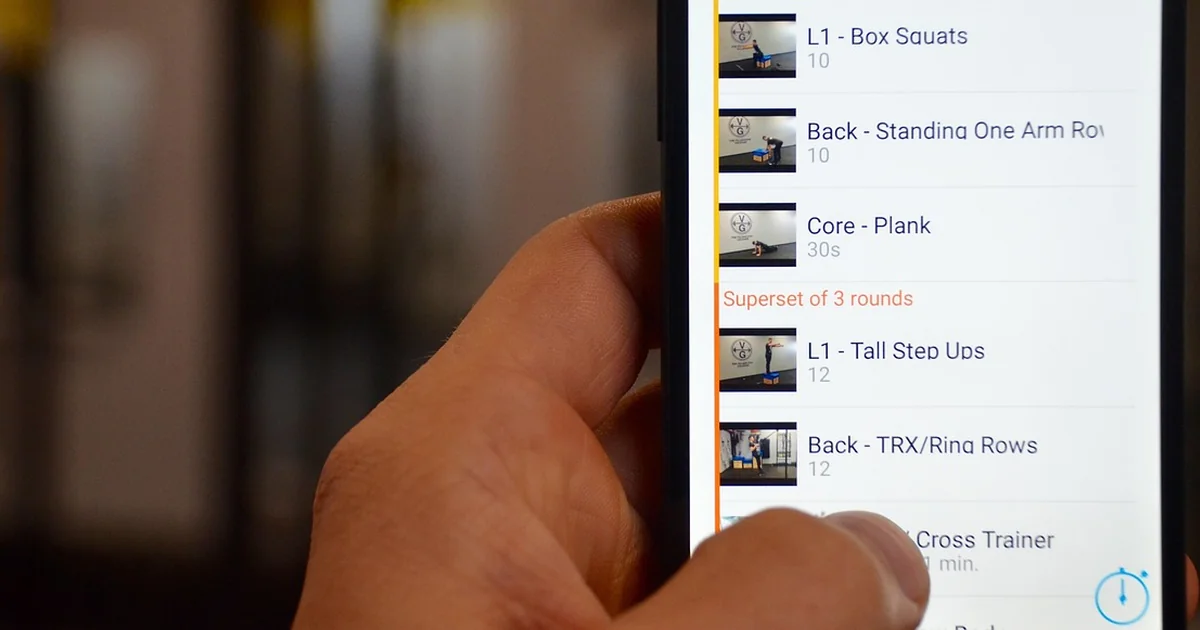
The watch handles capture. Your phone interprets, stores, and visualizes that data. Without a strong companion experience, a smartwatch is just an expensive wrist ornament. Building one correctly requires careful architecture, a deep understanding of platform health stores, and a realistic approach to background data delivery.
This guide walks through a code-first approach using React Native. We will cover five concrete steps to build a fitness companion app that syncs reliably, respects battery life, and delivers a fast dashboard. By the end, you will understand how to read from HealthKit and Health Connect, how to avoid common sync bugs, and why the dashboard UI is the real time sink.
Step 1 — Scaffold the Expo Project with Native Health Libraries
Both iOS and Android require native modules to access their health stores. A standard Expo managed workflow will not work here. You need a custom development client because react-native-health and react-native-health-connect are native modules that require prebuilt binaries.
Start by creating a fresh Expo project with the development client template. Run npx create-expo-app fitness-companion --template inside your terminal. Then install the dev client, the health libraries, and run the prebuild command to generate the native folders for iOS and Android.
Configure Permissions in app.json
iOS requires specific entries in the Info.plist for HealthKit. Android needs explicit permissions declared in the manifest. In your app.json file, add the NSHealthShareUsageDescription and NSHealthUpdateUsageDescription under the iOS entitlements. Enable the com.apple.developer.healthkit entitlement. For Android, list permissions such as android.permission.health.READ_STEPS, android.permission.health.READ_HEART_RATE, android.permission.health.READ_SLEEP, and android.permission.health.READ_EXERCISE.
Without these permissions, the health store will silently return zero for every query. That silent failure is a common gotcha in production. Always test permissions on a real device with HealthKit or Health Connect installed.
The Importance of a Custom Dev Client
A surprising number of developers attempt to build a fitness companion app using an Expo managed workflow only to discover that react-native-health refuses to link. This single mistake can waste an entire day. Using a custom dev client from the start avoids this frustration. Budget half a day to wire up the native modules properly the first time. Once the scaffolding is correct, the rest of the integration becomes predictable.
Step 2 — Read Health Data from iOS (HealthKit)
Apple’s HealthKit is the central repository for all health and fitness data on iOS. It stores steps, heart rate, sleep analysis, workouts, active energy, and dozens of other sample types. The React Native library react-native-health provides a clean JavaScript interface for reading and writing these samples.
Initialize HealthKit with Permissions
First, define a permissions object that lists every data type you want to read and write. For a companion app, typical read permissions include Steps, HeartRate, SleepAnalysis, Workout, and ActiveEnergyBurned. Write permissions usually include Workout so users can log manual entries. Pass this object to the initHealthKit function:
import AppleHealthKit, { HealthKitPermissions } from 'react-native-health';

const permissions: HealthKitPermissions = {
 permissions: {
 read: [
 AppleHealthKit.Constants.Permissions.Steps,
 AppleHealthKit.Constants.Permissions.HeartRate,
 AppleHealthKit.Constants.Permissions.SleepAnalysis,
 AppleHealthKit.Constants.Permissions.Workout,
 AppleHealthKit.Constants.Permissions.ActiveEnergyBurned,
 ],
 write: [
 AppleHealthKit.Constants.Permissions.Workout,
 ],
 },
};

AppleHealthKit.initHealthKit(permissions, (error, result) => {
 if (error) {
 console.error('HealthKit initialization failed', error);
 return;
 }
 // HealthKit is ready
});
Remember that iOS will not tell you if a read permission was denied. Calling getStepCount with a missing permission silently returns zero. Always guide the user to the Health app to grant permissions if your initial request is declined.
Three Production Gotchas
First gotcha: Background delivery is a constraint, not a feature. iOS will throttle your observer queries aggressively. Design your fitness companion app as if it wakes every 15 to 30 minutes, not every second. This means your dashboard should not rely on real-time updates. Use the last known cached values and refresh them on the user’s next foreground session.
Second gotcha: The OS health store is the source of truth for samples, not your app. If the user reinstalls the app, HealthKit still has all their historical data. Your local database is a cache for fast UI rendering and a write buffer for user-generated entries. Never treat your local database as the authoritative source.
Third gotcha: Aggregated queries can double-count samples. When you query for total steps in a day using an aggregated function, you may receive a number that includes duplicate entries from multiple sources. Use getSamples with explicit source filtering to avoid this. Filtering by a specific device or app source prevents double-counting.
Step 3 — Read Health Data from Android (Health Connect)
Google replaced the older Google Fit developer API with Health Connect in 2023. Health Connect is the unified health data platform for Android 11 and above. It stores data from devices like Pixel Watch, Samsung Galaxy Watch, Fitbit, and many others. The React Native library react-native-health-connect gives you access to this data store.
Set Up Health Connect Permissions
Health Connect uses a permission model similar to HealthKit but with a different API. You request access to specific record types such as StepsRecord, HeartRateRecord, SleepSessionRecord, and ExerciseSessionRecord. The user must grant each record type individually.
One unique aspect of Health Connect is that it requires the Health Connect app to be installed on the device. If the user does not have it, you must prompt them to download it from the Play Store. Your fitness companion app should check for availability and show a friendly onboarding step.
Reading and Writing Data
Reading from Health Connect works almost identically to HealthKit. You call a read function with a time range and receive an array of records. Writing data also follows a similar pattern: you create a record object with a start time, end time, and value, then insert it into the store.
Important difference: Health Connect supports bidirectional writes by default. When your app writes a workout, it should write it to both the OS health store and your backend. This ensures the user’s data is available even if they switch phones. However, be careful not to write duplicate entries. Always include a unique identifier in the payload so your backend can detect and reject duplicates.
You may also enjoy reading: 5 Dirty Frag Linux Exploits: Copy Fail Hits Every Distro.
Handling Multiple Wearable Sources
Health Connect aggregates data from every connected source. A user might wear a Pixel Watch during the day and a Fitbit Charge during sleep. Both devices push step data to Health Connect. When you query for total steps, you risk double-counting. Use source filtering inside your read queries. Specify the package name of the source you trust most, or merge the data with deduplication logic in your backend.
For most consumer apps, starting with HealthKit and Health Connect covers 90% of retail wearables without writing any firmware. Vendor-specific SDKs from Garmin, Oura, Whoop, or Polar should be treated as a v2 problem. The user already trusts the permission dialog of the OS health store, and you skip juggling six different OAuth flows.
Step 4 — Build a Reliable Sync Model (The Backend Layer)
The sync model is where most health apps fail. A poorly designed sync can cause duplicate workouts, missing sleep data, or inconsistent step counts. The core rule to internalize is this: make your backend POST /samples endpoint idempotent on the HealthKit UUID or Health Connect UUID. This single rule prevents most sync bugs.
How Idempotency Works
Each sample in HealthKit has a unique UUID. When your app uploads a sample to the backend, include this UUID in the request body. The backend checks if a sample with that UUID already exists. If it does, the backend returns a success status without modifying anything. If it does not, the backend inserts the new record. This approach allows your app to retry failed uploads without creating duplicates.
Hypothetical scenario: Imagine a user logs a 5K run on a treadmill. Your app writes the workout to HealthKit and attempts to upload it to your backend. The user’s network drops off halfway. On the next sync, your app retries the same POST request. Without idempotency, the backend creates two identical 5K runs. The dashboard shows 10K. The user is confused and frustrated. With idempotency, the duplicate is safely ignored.
The Local Database Role
Your local database is a cache for fast UI rendering. It is also a write buffer for user-generated samples. When the user logs a new entry, save it to the local database immediately so the UI updates instantly. Then push it to the OS health store and the backend asynchronously. If the push fails, keep the entry in the local database and mark it as “pending sync.” On the next background fetch, retry the pending entries.
Reads Are One-Directional, Writes Are Bidirectional
Reads pull data from HealthKit or Health Connect into your local cache. Writes hit both the OS store and your backend. Never write data that only lives in your backend. If a user switches from iOS to Android, they expect to see their data in your app regardless of platform. Storing data in both the OS store and your backend ensures portability.
Realistic constraint: Background delivery on iOS is unreliable. Your app may wake up only a few times per day. Design your sync model to tolerate delays of up to 30 minutes. Avoid real-time expectations. Instead, display a “Last synced” timestamp in your dashboard so the user understands the freshness of the data.
Step 5 — Design the Dashboard and Manage UI Complexity
The dashboard is the most time-consuming piece of any companion app. Not because the charts are hard to code, but because you need to handle empty states, partial data, loading skeletons, and edge cases like zero step days or missing sleep data. Plan to spend at least 70 percent of your development effort on the UI layer.
Visualizing Data from Multiple Sources
A user might wear an Apple Watch during the day and sync to HealthKit. Then they switch to an Android phone and sync a Galaxy Watch via Health Connect. Your dashboard must merge these two data streams into a single coherent timeline. Use daily or hourly buckets as your aggregation unit. For each bucket, combine values from all available sources and apply deduplication rules. For example, take the maximum step count from any source rather than summing them.
Handling Permission Denials Gracefully
If the user denies HealthKit read permissions, your dashboard will show zeros for every metric. Do not leave them staring at a blank screen. Show a friendly card explaining that the app needs reading permissions to display their activity. Include a button that links directly to the Health app’s permission settings. On Android, if Health Connect is not installed, show a button to download it from the Play Store.
Performance Optimizations for Frequent Renders
Dashboards in a fitness companion app often re-render after every sync. If you are not careful, the charts can jank and drop frames. Use memoization and FlatList virtualization for long lists. Consider using a lightweight charting library like react-native-svg-charts or victory-native. Avoid re-fetching the entire day’s data on every render. Instead, keep a local state snapshot and only fetch new samples when the user pulls to refresh or when a background sync completes.
User-Generated Content and Manual Logging
Allow users to manually log workouts, steps, or sleep if their wearable missed a session. This data should be written to both the OS health store and your backend. In the UI, differentiate between automatically captured samples and manually entered ones with a small icon or label. Users appreciate the transparency and trust the dashboard more when they can see which entries came from the watch and which came from their own input.